
• Skip to primary navigation
  • Skip to main content
  • Skip to primary sidebar
SimplifyEm Property Management Software Logo

510-790-9066
510-790-9066
》Sign In
  • Features
    • Accounting Software
    • Reconciliation
    • Tenant Screening
    • 1099 E-filing
    • Reports
    • Communication Center
    • Integrated Rental Application
    • Rental Listing
    • Online Rent Payments
    • Tenant Portal
    • AI in Property Management
  • Property Management
    • Online Rent Payments
    • Tenant Screening
    • Rental Listings
    • SimplifyEm CRM
    • FAQ
  • Rental Forms
    • Lease Agreement
    • Rental Application
    • Notice to Vacate
    • Notice to Quit
    • Lease Termination
    • Notice to Pay Rent
    • Rental Inspection
    • Eviction Notice
  • Pricing
  • Reviews
  • Schedule Demo
  • FREE TRIAL!
  • 》​Sign​ In

FAQ > Managing Banks

How do I setup check printing?

Set Up Check Printing for a Bank Account in SimplifyEm

To print checks for a bank account in SimplifyEm, you need to select the appropriate check stock. This can be done while setting up your bank details or, if the bank account is already configured, by going to the Bank Center. Select the bank, choose “Edit Bank Details” from the “Take Actions” menu, and then select the check stock under the “Print Checks” link.
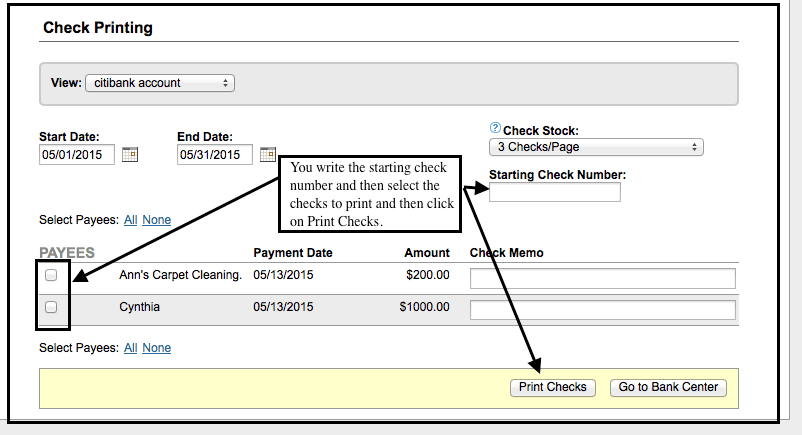
check printing

Check Printing

In SimplifyEm, checks are associated with Owner Draws and Vendor Payments. To print a check, each draw or payment must meet the following conditions:

  1. Be mapped to a bank account.
  2. Ensure the “Check Printable” box is checked.
  3. The check date should be after the tracking date for the bank account.

To map an owner to a bank account, navigate to the Bank Center and on the Add/Edit bank details page, select “Make the default for the following transaction types” and choose the relevant owners or vendors. You can enable check printing for an owner by going to the Owner Center, selecting the owner’s name, and clicking “Edit Owner Details” from the “Take Actions” drop-down menu. Then, check the box next to “Print checks for this owner.”
Finally, ensure the check date is set after the tracking date for the bank account, which can be adjusted in the Bank Center.

Primary Sidebar

SimplifyEm
Streamline Your Property Management

Schedule A FREE Demo

Table Of Contents

  • FAQ > Managing Banks
  • How do I setup check printing?
  • Set Up Check Printing for a Bank Account in SimplifyEm

SimplifyEm

  • Property Management Software
  • SimplifyEm Reviews
  • About Us
  • Pricing
  • SimplifyEm CRM
  • Terms and Conditions
  • Privacy Policy
  • SimplifyEm Security

Features

  • Property Management
  • Online Rent Payments
  • Affordable Tenant Screening
  • Rental Listing
  • Request Demo
  • Accounting Software
  • Reconciliation
  • Tenant Screening
  • 1099 eFiling Feature
  • Reports
  • Communication Center
  • Integrated Rental Application
  • Rental Listing
  • Online Rent Payments
  • Tenant Portal
  • AI in Property Management

Forms

  • Lease Agreement
  • Notice To Quit
  • Notice To Pay Rent
  • Rental Application
  • Rental Inspection
  • Lease Termination
  • Eviction Notice

Resources

  • Blog
  • Property Management Companies
  • Law
  • Buzz
  • FAQ

Company

  • Contact Us
  • Support
  • Press And Media
  • Career


SimplifyEm Property Management Software Logo

Follow us

Facebook Instagram Twitter LinkedIn YouTube

Download App

Google Play App Store
SimplifyEm Google Reviews - Rated 4.8 out of 5 SimplifyEm G2 Reviews - Rated 4.7 out of 5 SimplifyEm Software Advice Reviews - Rated 4.8 out of 5 SimplifyEm Capterra Reviews - Rated 4.7 out of 5

Copyright © 2025 SimplifyEm Inc. · All rights reserved.

Get Your Lease Agreement Form in Just One Step

I am a: