• Skip to primary navigation
  • Skip to main content
  • Skip to primary sidebar
SimplifyEm Property Management Software Logo

510-790-9066
510-790-9066
》Sign In
  • Features
    • Accounting Software
    • Reconciliation
    • Tenant Screening
    • 1099 E-filing
    • Reports
    • Communication Center
    • Integrated Rental Application
    • Rental Listing
    • Online Rent Payments
    • Tenant Portal
    • AI in Property Management
  • Property Management
    • Online Rent Payments
    • Tenant Screening
    • Rental Listings
    • SimplifyEm CRM
    • FAQ
  • Rental Forms
    • Lease Agreement
    • Rental Application
    • Notice to Vacate
    • Notice to Quit
    • Lease Termination
    • Notice to Pay Rent
    • Rental Inspection
    • Eviction Notice
  • Pricing
  • Reviews
  • Schedule Demo
  • FREE TRIAL!
  • 》​Sign​ In

FAQ > Managing Vendors

  1. What is the vendor page for?
  2. Do I have to use the vendor page?
  3. How can I add vendor information to SimplifyEm.com Property Management Software?
  4. How is a Vendor’s opening balance recorded?
  5. How can I generate a list of all my vendors and their contact information?
  6. I pay my vendors at the same time that I input my expenses in SimplifyEm.com Property Management Software, do you handle that?
  7. How to Create/Update/Delete Vendor Payments?
  8. How does the Auto Allocation work in Vendor Payment?
  9. How can I generate Vendor Balance Reports?

1. What is the vendor page for?

The vendor page allows you to manage your vendor information. You would use it if, for example, you had a vendor that you wanted to track in terms of how much you have paid or owe this vendor across all the properties where you do business.

The vendor page will allow you to manage vendor-related information such as:

  • Vendor Contact info
  • Vendor payments
  • Adding new vendors
  • Mapping vendors to unassigned expenses
  • Viewing vendor balance histories

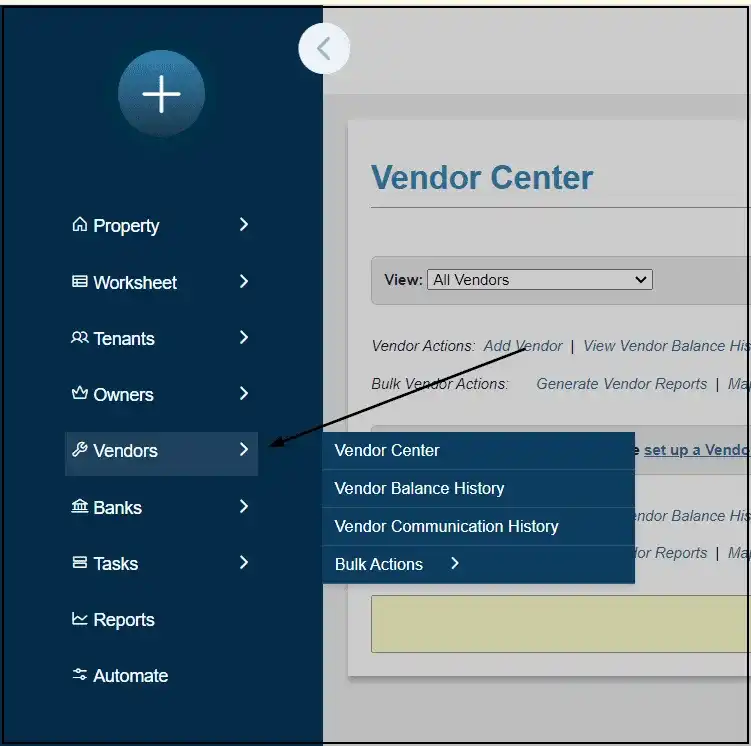
You can access this page by clicking on the ‘Vendors’ link at the top of the page.

top

2. Do I have to use the vendor page?

No, this is entirely optional. However, it is very useful for property managers who have multiple vendors for each property. The Vendor page helps property managers keep track of vendor payments for each property. It’s also useful if you need to generate 1099 for a vendor.

top

3. How can I add vendor information to SimplifyEm.com Property Management Software?

Property managers can add multiple vendors for each property. To add vendor information for each vendor, do the following:

1. Go to the vendor page by clicking on the ‘Vendors’ link on the left of the page.


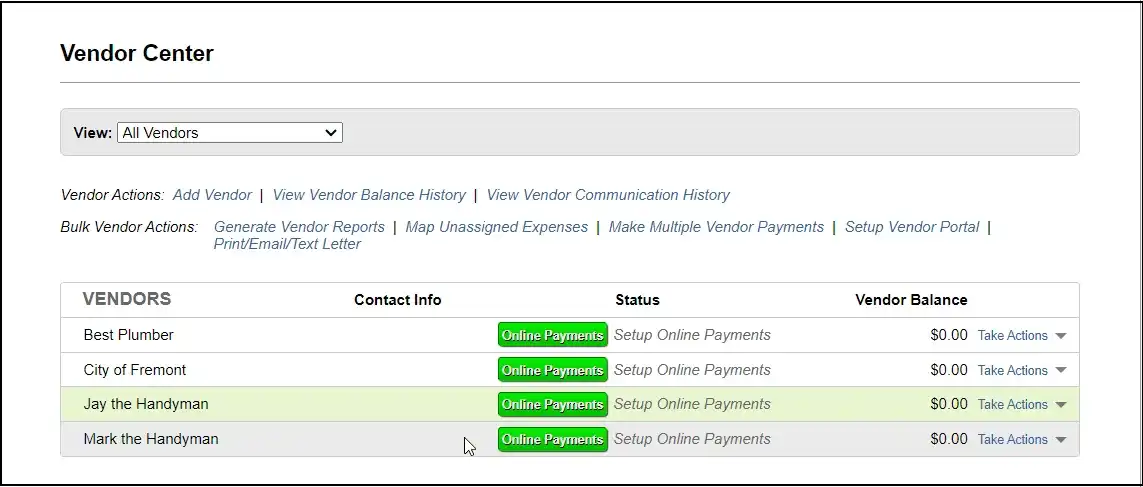
2. You will arrive at the Vendor Center page.

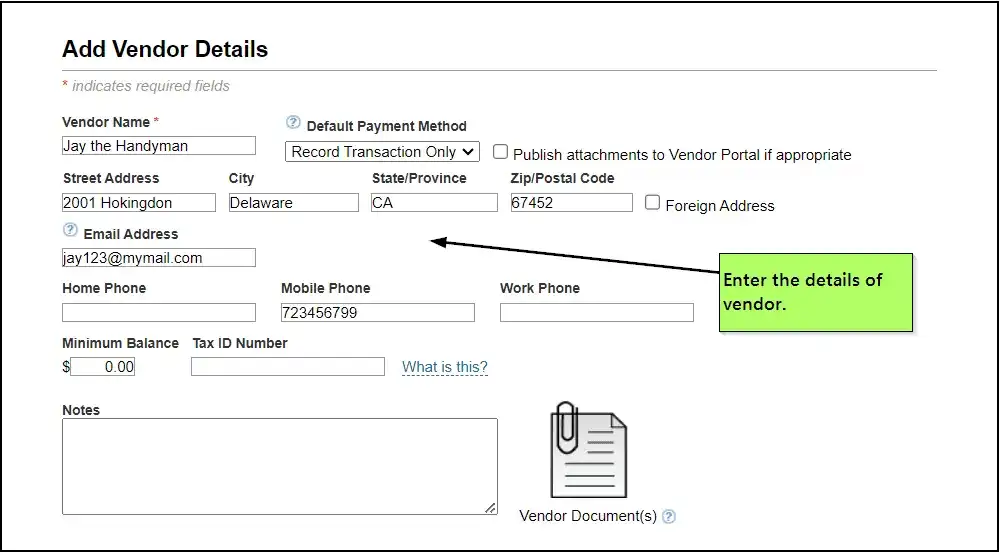
3. Click on the ‘Add Vendor’ link to add new vendor information.

4. You will arrive at the ‘add vendor details’ page. Enter all the vendor information and click the ‘Save’ button.

5. You will arrive at the ‘vendor center’ page again. Here you can see the newly added vendor information.


4. How is a Vendor’s opening balance recorded?

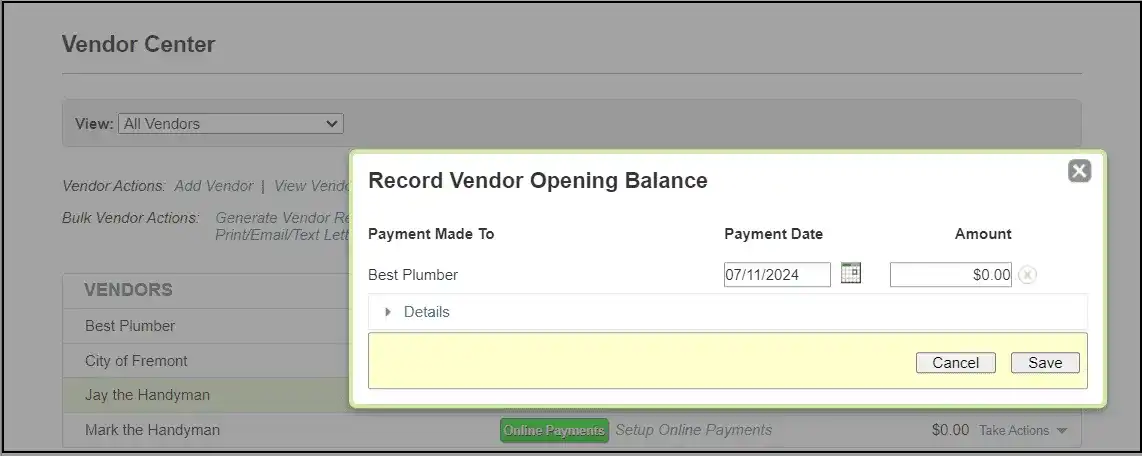
The property manager records a vendor opening balance in SimplifyEm.com Property Management Software if they owe some pending balance to vendors from their last expense transaction. Here are the steps to record vendor opening balance:

1. Go to the vendor center by clicking on the ‘Vendors’ tab at the top of the page.

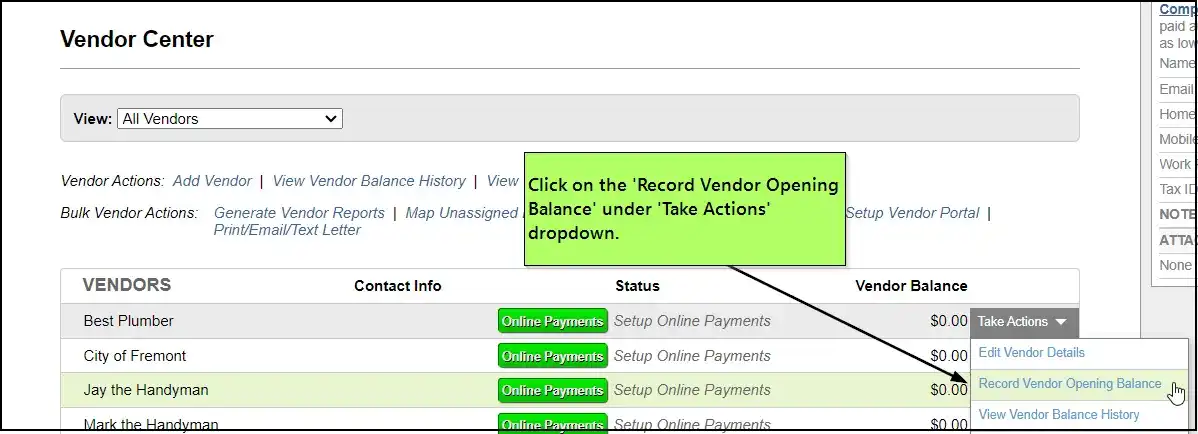
2. Hover over ‘Take Actions’ for the corresponding vendor’s row and click ‘Record Vendor Opening Balance’ from the dropdown list.

3. Record vendor opening balance popup appears.

4. Enter the vendor opening balance amount in the amount field and select the date to record the vendor opening balance.

5. Click the ‘Save’ button.

6. Vendor opening balance has been recorded on the vendor balance history page for the corresponding month.

top

5. How can I generate a list of all my vendors and their contact information?

SimplifyEm.com Property Management Software allows you to generate a report with a list of all your vendors and their contact information. To do this:

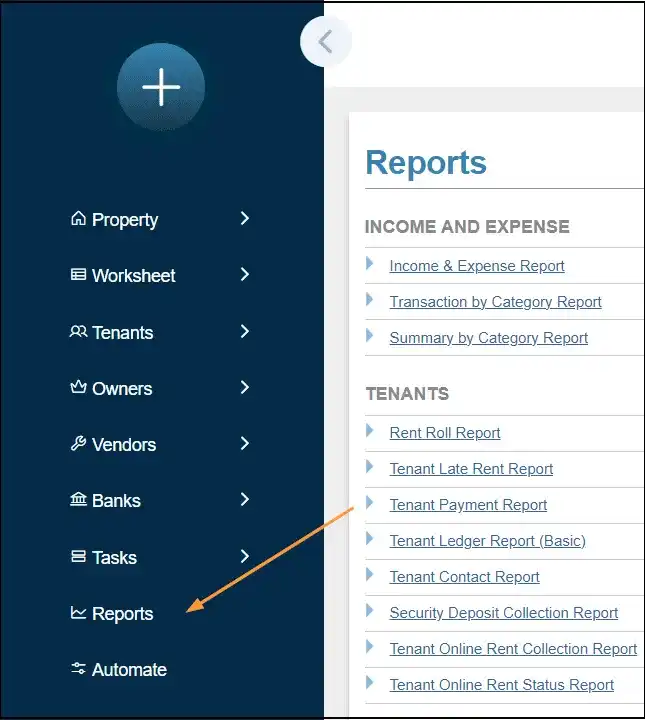
1. Go to the ‘Reports’ page.

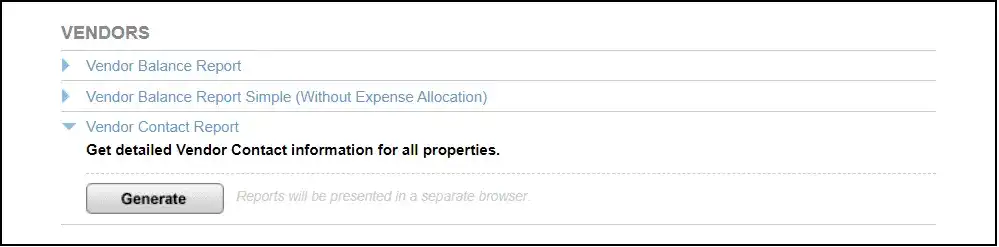
2. Scroll down to the ‘Vendors’ section on the page, expand the ‘Vendor Contact Report’ section and click on the ‘Generate’ button. The generated report will show you a list of all your vendors and their contact information.

Vendor's Contact Info

top

6. I pay my vendors at the same time that I input my expenses into SimplifyEm.com Property
Management Software, do you handle that?

Yes, and there are two ways to handle these ‘vendor payments’ in SimplifyEm.com Property Management Software:

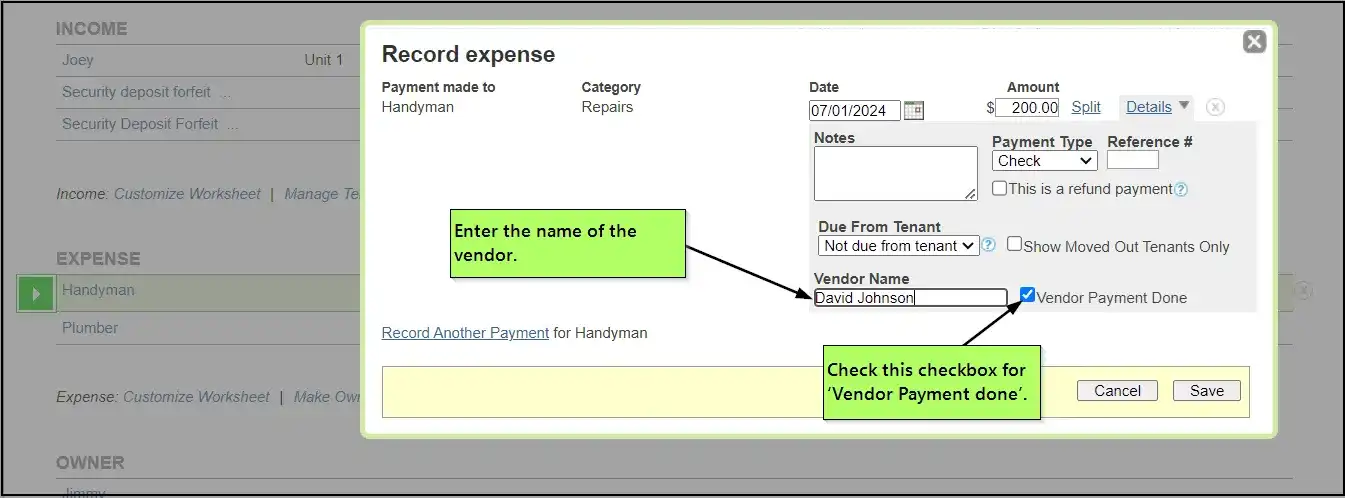
1. The first way is: When you enter an expense on the worksheet, you can record the vendor payment at the same time, by checking the ‘vendor payment done’ checkbox in the ‘record expense’ popup.
For example, let’s say you paid $200.00 on July 1st to “David Johnson” for doing some repairs on your property. So on the Worksheet, you record this $200.00 as an expense for your Handyman row and click the ‘Specify Date/Edit Details’ button next to the amount field.

You can then record this $200.00 as already paid to the vendor by selecting ‘Vendor Payment done’ under the details section as shown below:

Click the ‘Save’ button.

2. The second way is: you can enter the expense and vendor payment at the same time on the vendor page.

For example, if the vendor did a job for $200.00, you would do the following to record the $200.00 as an expense and vendor payment at the same time:

2.1 Go to the Vendor page by clicking on the ‘Vendors’ tab at the top of the page.

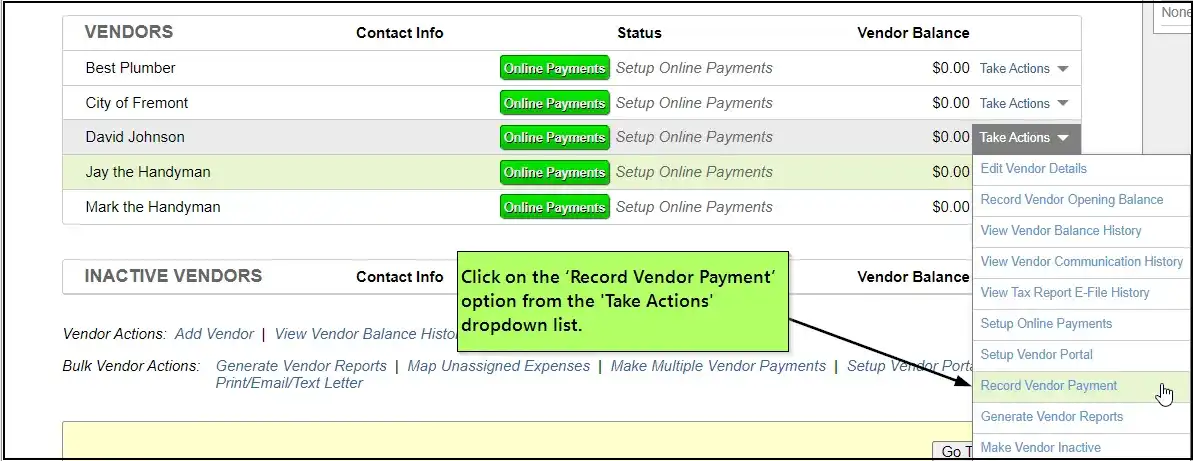
2.2 Hover over ‘Take Actions’ for the corresponding vendor’s row and click the ‘Record Vendor Payment’ option from the dropdown list.

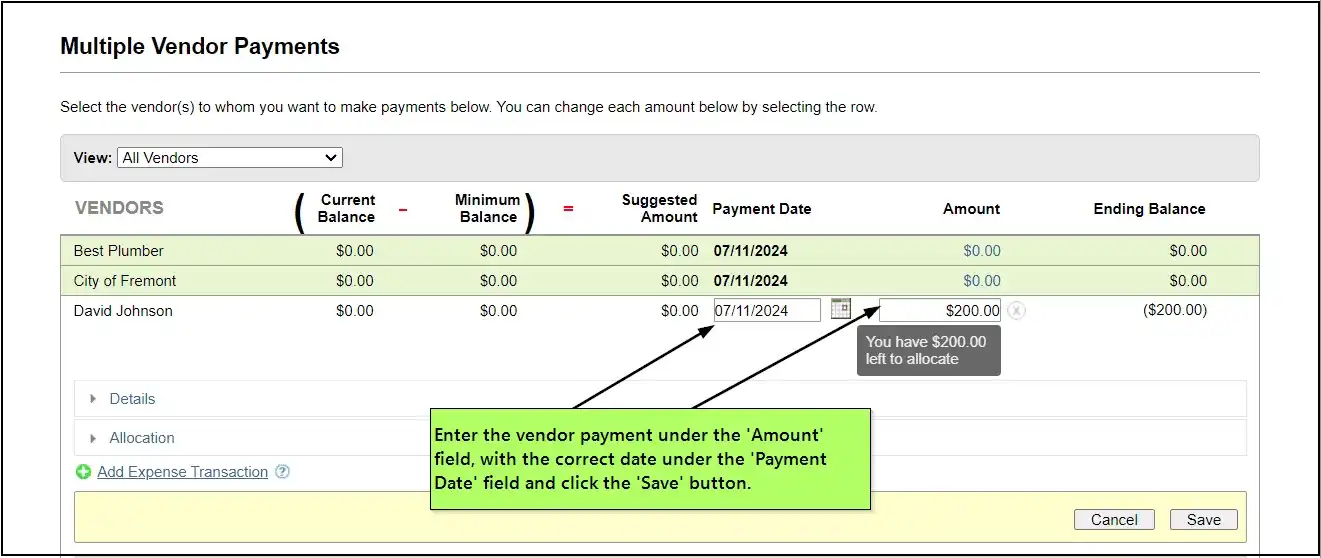
2.3 This will bring up the ‘Multiple Vendor Payments’ page that allows you to enter the vendor payment. You can now enter the vendor payment of $200.00, with the correct date, and click the ‘Multiple Vendor Payments’ button.

Multi Vendor Payment

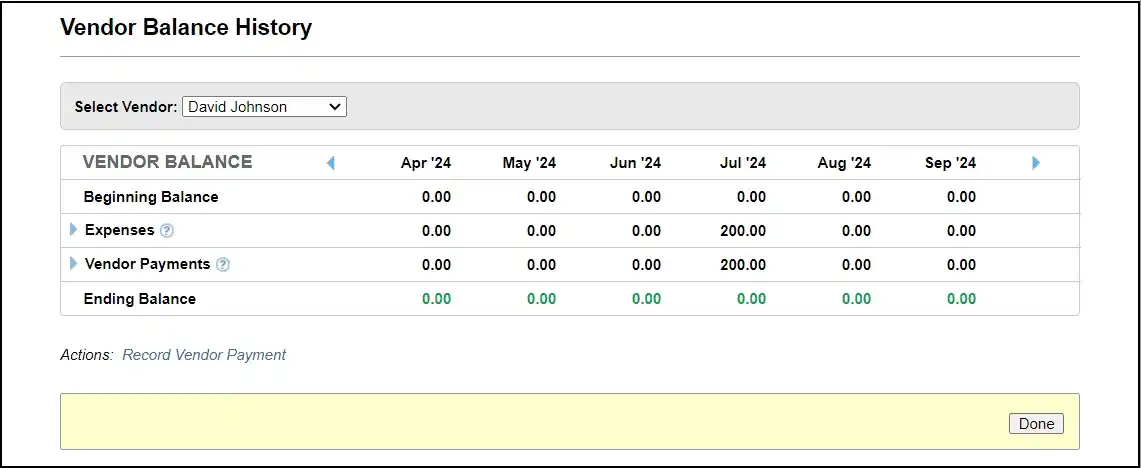
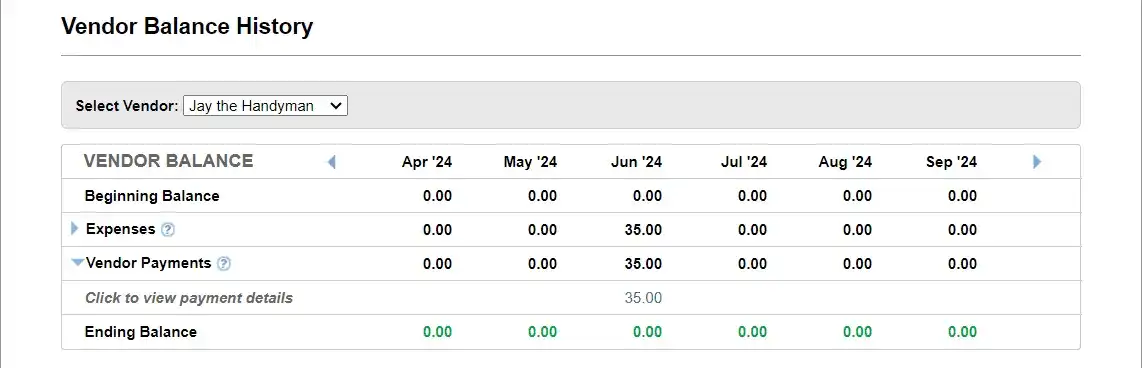
2.4 The above Vendor payment will show up on the Vendor Balance History page.

top

7. How to Create/Update/Delete Vendor Payments?

To use Record Vendor Payment, it’s necessary to create/update and delete the vendor payment.

1. Steps to Create Vendor payment:
Creating a vendor payment is simple.

  • Go to Vendors – > Vendor balance history

Select ‘Record vendor payment’

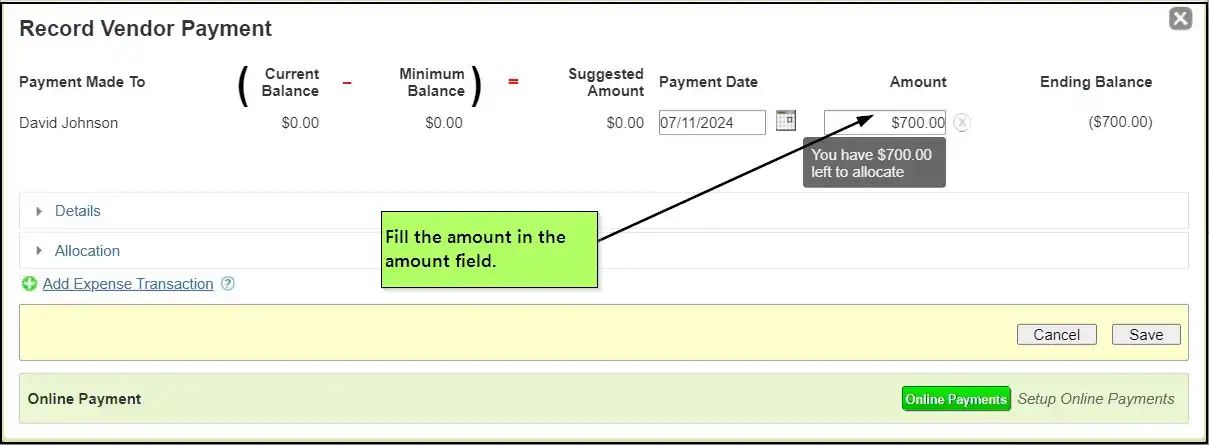
Fill the amount in the amount field, and the amount will be auto-allocated within the property. Select save.

2. Steps to Update Vendor Payment.
We can update the vendor payment

  • Go to Vendors – > Vendor balance history
  • Expand the Vendor Payments Row by clicking on the blue arrow.

Select the vendor payment that needs to be updated.

Change the amount or update the amount and select save.

3. Steps to Delete the vendor payment.
We can Delete the vendor payment,

  • Go to Vendors – > Vendor balance history
  • Expand the Vendor Payments Row by clicking on the blue arrow

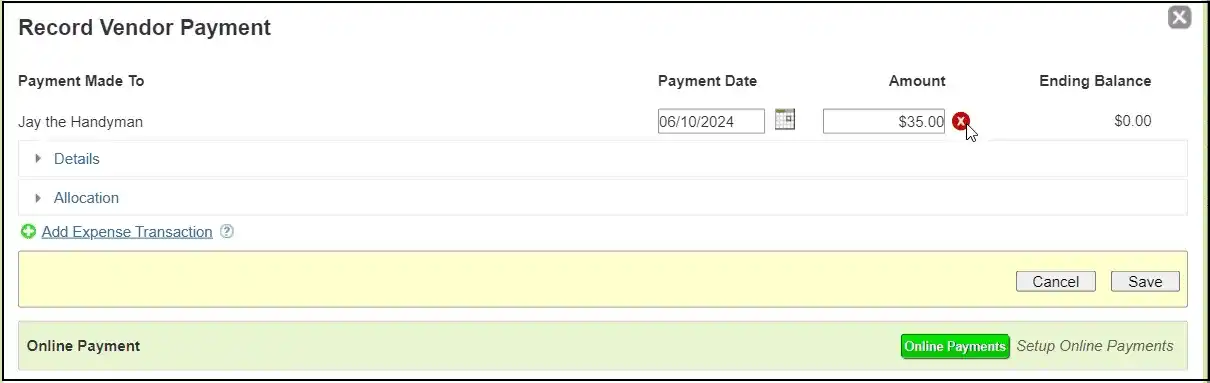
Select the vendor payment

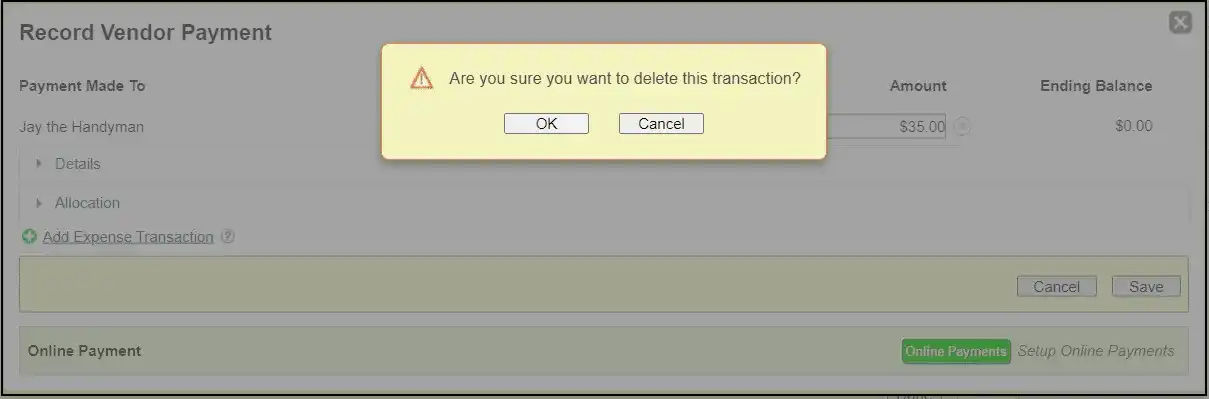
Click the close button next to the amount, a dialog will appear.


Select “OK” to delete the Vendor Payment transaction

8. How does the Auto Allocation work in Vendor Payment?

Auto allocation in record vendor payment is simple.

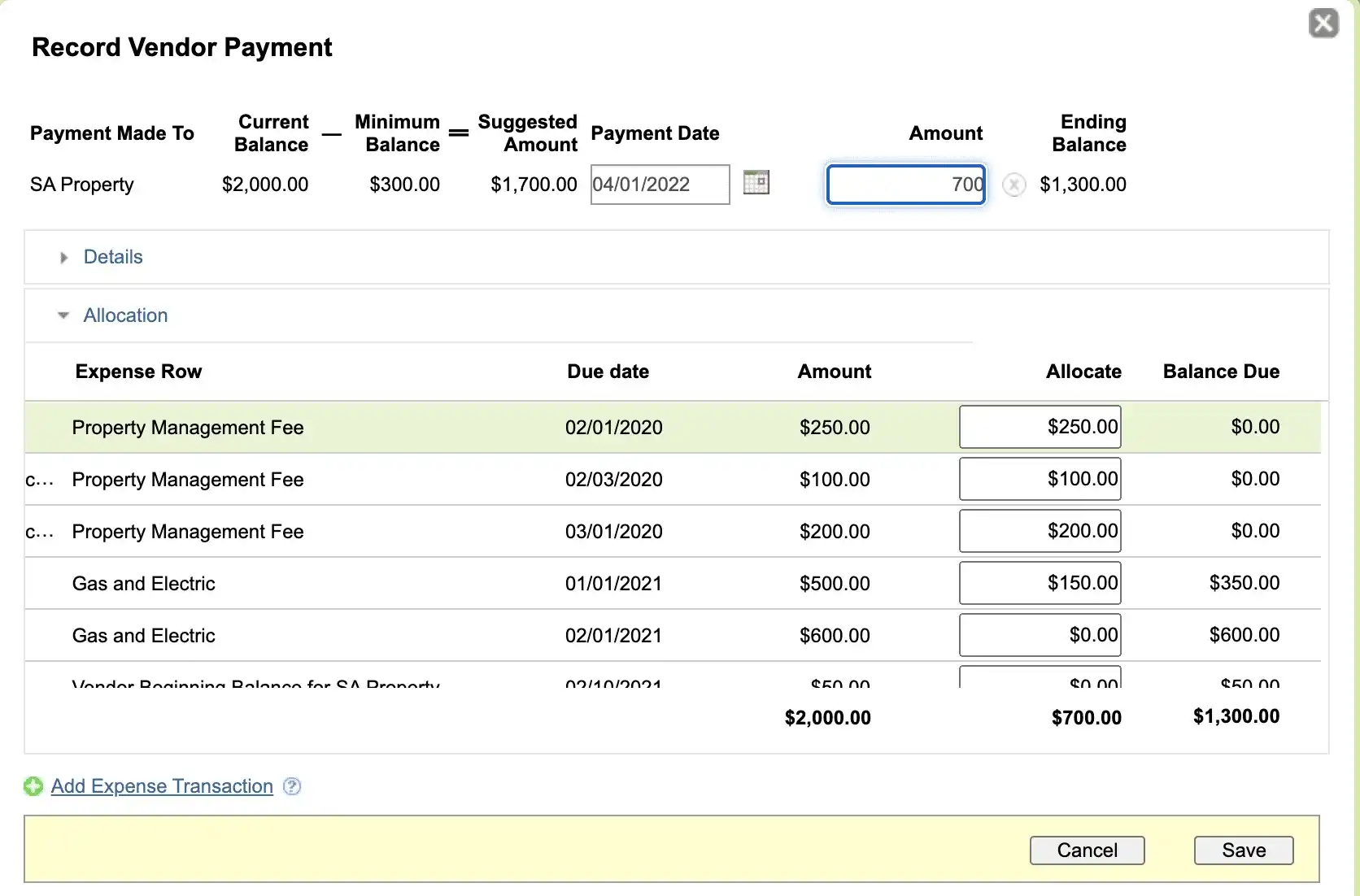
When a vendor payment is made by selecting ‘Record vendor payment’,

Then a dialog box opens with Vendor Payment

The amount is added and will be Auto Allocated to the expenses in chronological order.

9. How can I generate Vendor Balance Reports?

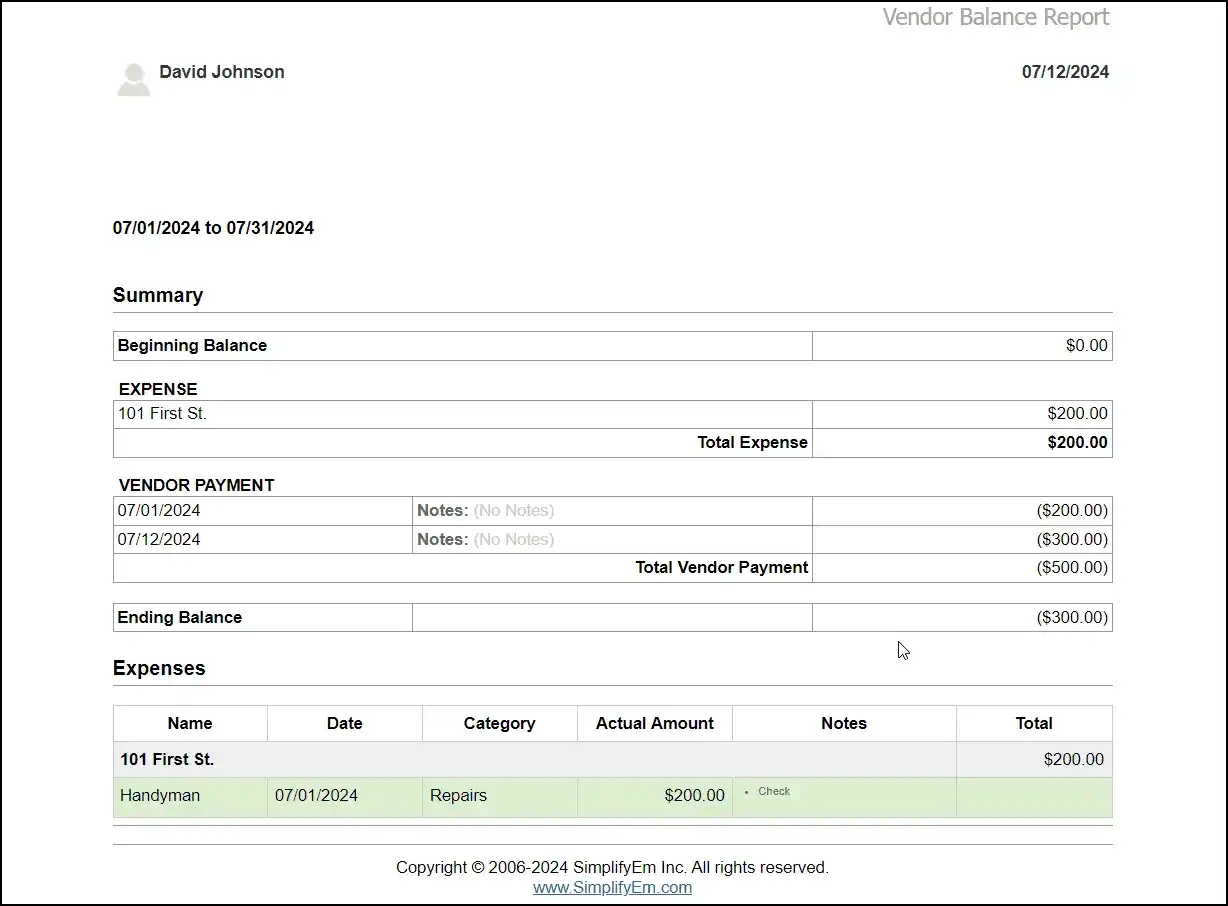
SimplifyEm.com gives you access to ‘Vendor Balance Reports’ for all your vendors. These reports have the
following key information:

  • Vendor’s opening cash balance
  • Net expense for each vendor (including transaction details)
  • Any vendor payments made during the month
  • The vendor ending balance for the month

You can print the ‘Vendor Balance Report’ for individual, or all, vendors. You can generate a Vendor
Balance Report from the Reports page:

1. Go to the reports page by clicking on the ‘Reports’ link at the top of the page.

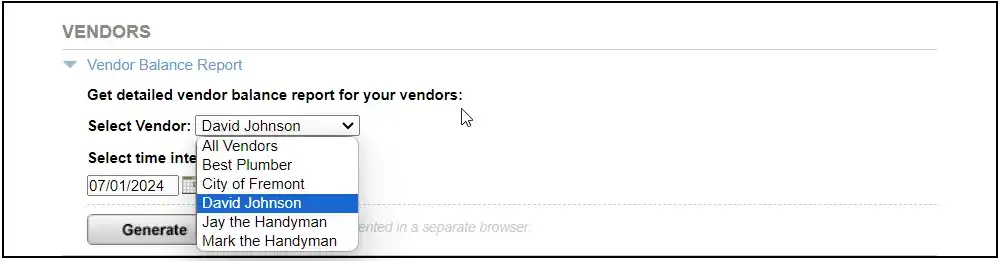
2. Scroll down to the ‘Vendors’ section. Expand ‘Vendor Balance Report’ and select the Vendor
name you want to generate the report for. If you select ‘All Vendors’, then the report will be generated
for all your vendors.

3. The Vendor Balance Report will be shown in a separate window or tab, as follows:

top

Primary Sidebar

SimplifyEm
Streamline Your Property Management

Schedule A FREE Demo

Table Of Contents

  • FAQ > Managing Vendors

SimplifyEm

  • Property Management Software
  • SimplifyEm Reviews
  • About Us
  • Pricing
  • SimplifyEm CRM
  • Terms and Conditions
  • Privacy Policy
  • SimplifyEm Security

Features

  • Property Management
  • Online Rent Payments
  • Affordable Tenant Screening
  • Rental Listing
  • Request Demo
  • Accounting Software
  • Reconciliation
  • Tenant Screening
  • 1099 eFiling Feature
  • Reports
  • Communication Center
  • Integrated Rental Application
  • Rental Listing
  • Online Rent Payments
  • Tenant Portal
  • AI in Property Management

Forms

  • Lease Agreement
  • Notice To Quit
  • Notice To Pay Rent
  • Rental Application
  • Rental Inspection
  • Lease Termination
  • Eviction Notice

Resources

  • Blog
  • Property Management Companies
  • Law
  • Buzz
  • FAQ

Company

  • Contact Us
  • Support
  • Press And Media
  • Career


SimplifyEm Property Management Software Logo

Follow us

Facebook Instagram Twitter LinkedIn YouTube

Download App

Google Play App Store
SimplifyEm Google Reviews - Rated 4.8 out of 5 SimplifyEm G2 Reviews - Rated 4.7 out of 5 SimplifyEm Software Advice Reviews - Rated 4.8 out of 5 SimplifyEm Capterra Reviews - Rated 4.7 out of 5

Copyright © 2025 SimplifyEm Inc. · All rights reserved.

Get Your Lease Agreement Form in Just One Step

I am a: